
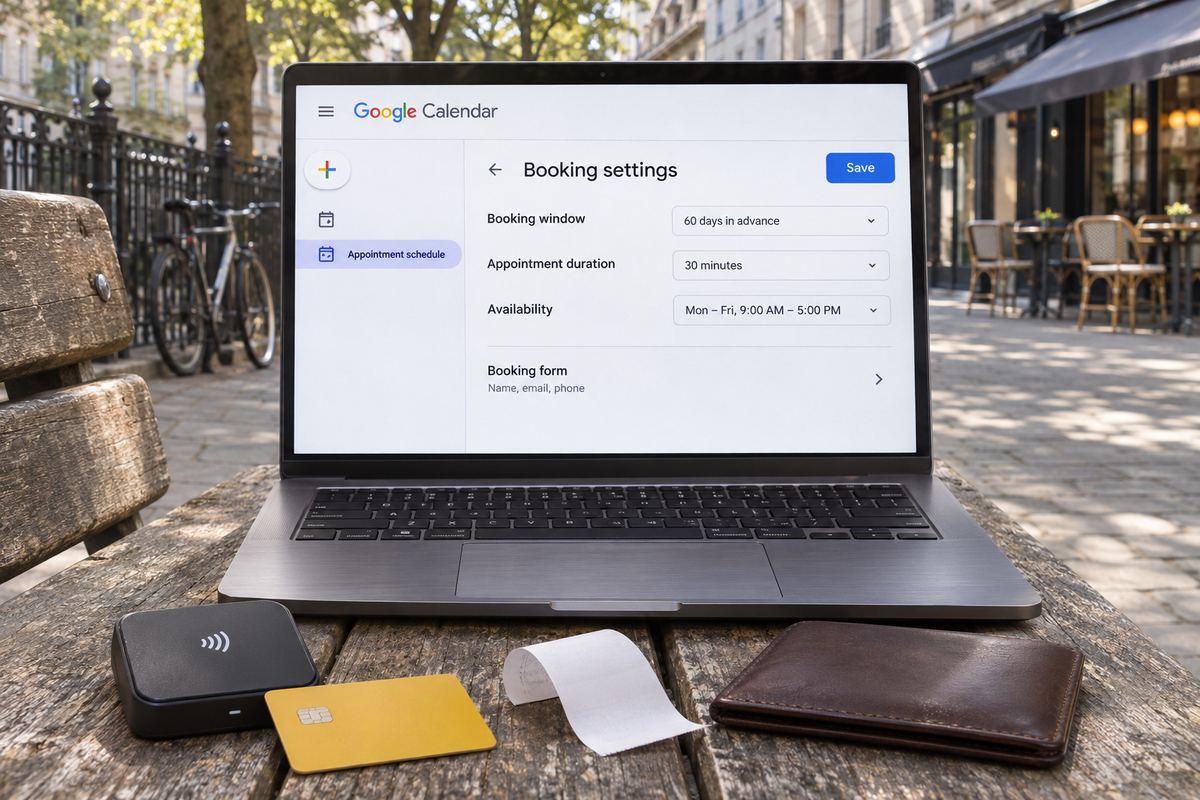
You've set up an appointment schedule in Google Calendar so students or clients can book a lesson or a session, and you want them to pay when they book instead of chasing them afterwards. But when you open the schedule there's no 'Payments & cancellation policy' section, or 'Require payment when booking' won't tick, or there's no 'Connect Stripe' button anywhere in Settings.
Google Calendar can take payment for bookings, but only when four things are true: your account is on a Google Workspace plan that includes paid bookings, your administrator (if you have one) has switched the feature on, Calendar is connected to a Stripe account, and you are doing the setup on a computer. The option goes missing when any one of them isn't in place. Here is how to tell which one, and the fix for each, in Calendar's current wording.
Start with the account you are signed in to. Click the profile picture at the top right of Google Calendar, note which address it shows, then match your situation:
- A free Gmail account, Google Workspace Business Starter, or a Google One or Google AI plan: paid bookings aren't included. See cause 1.
- A work, school or organization account on an eligible plan, and you still don't see it: your admin hasn't switched it on. See cause 2.
- Your plan includes it, but Calendar has never been connected to Stripe, or someone disconnected it: see cause 3.
- You're looking in the Calendar app on your phone or tablet: see cause 4.
- Payment works on one booking page, but clients booking from another aren't asked to pay: see cause 5.
Cause 1: Your account isn't on a plan that includes paid bookings
Google describes paid appointment bookings as 'a premium feature for appointment schedules', available to users with 'an eligible Google Workspace subscription'. The editions Google lists are Workspace Individual, Business Standard, Business Plus, Enterprise Standard, Enterprise Plus, Education Fundamentals, Education Standard, Education Plus and Nonprofits.
With a personal Google Account or Workspace Business Starter, Google says you can create a single booking page, and payments aren't part of it. A Google One Premium, Google AI Pro or Google AI Ultra plan adds some appointment features, such as more than one schedule and automatic email reminders, but in Google's own comparison chart 'Accept payments for appointments' isn't one of them. And on Workspace Essentials, Frontline or an older Workspace plan that's no longer sold, Google says you can't create appointment schedules at all.
- Personal Google Account: Google Workspace Individual is the plan for this. Google's help says you can sign up for a 14-day trial of it on your personal Google Account, and it lists 'Accept payments for booked appointments' among its Calendar features.
- Check your country first. Google says you need to be located, and have a payment profile set up, in a country or region where Workspace Individual is available. Its 'Learn about Google Workspace Individual' page lists them.
- Business Starter: paid bookings start at Business Standard, so the plan would need upgrading by whoever pays for your organization's Workspace.
Cause 2: Your Workspace admin hasn't switched it on
If your account is managed by an organization, the decision isn't yours. Google's help says your administrator controls access to paid appointment bookings, and puts it plainly: 'If you don't see this feature, contact your administrator.'
This catches people on plans that do include it, because Google's admin documentation says the setting 'is turned off by default for all available editions except for Business Standard.' So on Business Plus, Enterprise, Education and Nonprofits editions, someone has to switch it on first. In a school or a larger organization, ask your IT admin for 'Appointment schedules with payments' by name.
If you set up Workspace for your own business email, you are probably the admin. Here is the path:
- Sign in to the Google Admin console with an account that has the Calendar administrator privilege.
- Go to Menu, then 'Apps', then 'Google Workspace', then 'Calendar'.
- Click 'Advanced settings', then 'Appointment schedules with payments'.
- Choose 'ON'. Google's description is that this allows users to require payments for bookings in their appointment schedules by connecting their Calendar with any Stripe account. 'OFF' blocks users from adding required payments.
- Click 'Save', then reload Calendar and check the schedule again. Google's page doesn't say how long the change takes to reach users.
Cause 3: Stripe isn't connected, was disconnected, or isn't available where you are
Google Calendar doesn't take the money itself. Google's help says that to require payments 'you need to connect Google Calendar to a Stripe account', and that all payments and refunds are handled by Stripe.
If payment was working and has stopped, check whether Stripe is still connected: Google says that after you disconnect Stripe, all appointment schedules no longer require payment. And you can only connect if you can open a Stripe account at all. Google's help doesn't list countries for paid bookings, but Stripe only operates in the countries and regions on its own availability list, and the currencies you can charge come from Stripe too.
You connect Stripe once, in Settings, then switch payment on inside each schedule:
- On a computer, open Google Calendar.
- Click the Settings gear, then 'Settings'.
- On the left, click 'General', then 'Appointment schedules'.
- Click 'Connect Stripe' and follow Stripe's steps to sign in or create an account.
- Then open the appointment schedule and edit it, or make one with 'Create' and then 'Appointment schedule'.
- Expand 'Payments & cancellation policy' and tick 'Require payment when booking'.
- Enter the amount and currency, optionally add your cancellation policy, and click 'Save'.
Cause 4: You're trying it in the phone app
Google's help is direct about this: 'You can't create an appointment schedule in the Calendar app for Android or iPhone and iPad.' The steps for connecting Stripe also begin with opening Google Calendar on a computer, so the payment setting isn't in the app to find.
Do the setup on a computer, in a web browser. Once the booking page exists, you can share its link from your phone.
Cause 5: Payment is on, but not on the schedule you shared
'Require payment when booking' is set inside each appointment schedule. If you have more than one, say a free trial lesson and a regular paid lesson, a price on one does nothing for the other. Open the schedule whose link you actually sent, expand 'Payments & cancellation policy', and check that the box is ticked and the amount and currency are right.
Then test it the way a client would: open your booking page in a private or incognito window, pick a time and go as far as the payment step, then stop. If it appears there, it will appear for your clients.
Refunds and cancellations: what Google Calendar won't do for you
Read this before your first paid booking, because it's where people get caught out.
- Refunds are not automatic. Google says that when you cancel an appointment as the organizer, or the client cancels, 'a refund isn't processed automatically.' You refund the client from your Stripe dashboard.
- Your policy is yours to enforce. Google says that as the organizer, 'it's your responsibility to carry out your cancellation and refund policies', and Google Calendar doesn't assist with payment or refund issues.
- Put the policy where clients will see it. The optional cancellation policy in 'Payments & cancellation policy' appears on the booking form and in email reminders. Google tells clients to read it and then contact the organizer to ask for a refund.
- Clients can pay by credit card, Apple Pay or Google Pay. Google says those are the only options they can choose.
- Google says Calendar doesn't charge platform fees and doesn't process or store payment information. The price, the appointment title and the time slot are shared with Stripe.
What to set up before your next paid session
Once the option is showing, a short checklist saves you awkward messages later:
- Confirm the account at the top right of Calendar is the one on an eligible plan.
- Connect Stripe under 'Settings', 'General', 'Appointment schedules', and finish Stripe's own account setup.
- On every schedule you share, tick 'Require payment when booking', set the amount and currency, and write your cancellation policy.
- Set 'Buffer time' and 'Maximum bookings per day' so lessons don't run into each other.
- Under 'Check calendars for availability', choose the calendars that hold your other commitments, so they block those hours.
- If strangers start booking junk times, turn on 'Require email verification' in the booking form.
- Open your booking page in a private window and check the payment step appears before you send the link out.
If you'd rather not pay for Workspace just to take bookings
OneSol is another option: on a free OneSol page you set your weekdays, hours, session length (15 to 120 minutes) and how far ahead people can book, and clients pick a free time and pay into your own Stripe or PayPal account when they book. It doesn't sync with Google Calendar, so a personal appointment there won't block a time, times show as you set them rather than in the client's timezone (so name yours clearly for online clients), and each session is booked separately rather than as a recurring weekly slot. For group classes with a fixed number of places, OneSol event pages have tickets with their own price and seat limit, and booking closes when they're full.