
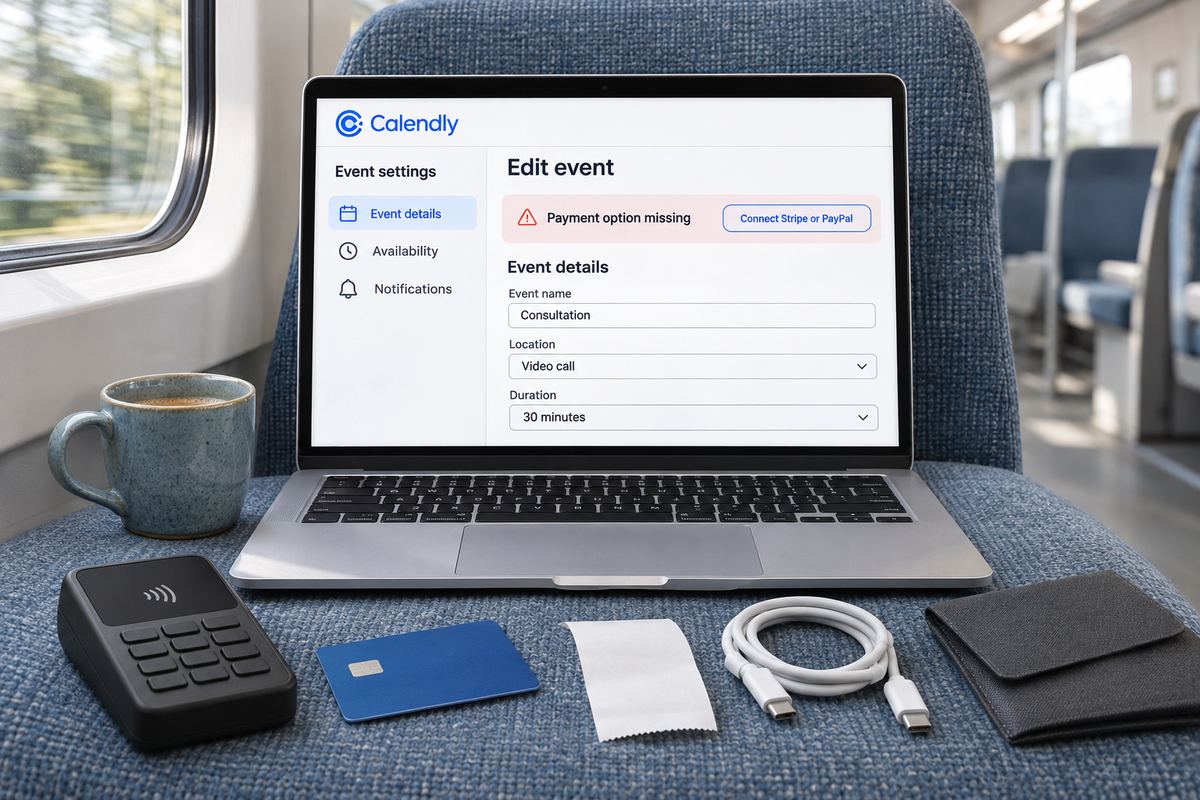
You set up a paid session in Calendly, send the link to a client, and something is off. There is no 'Payment' section to switch on. Stripe or PayPal won't connect. Or a client books, turns up, and no money ever arrived.
The quick answer: Calendly only collects payments on paid plans, and connecting Stripe or PayPal is not enough on its own. You also have to switch payment on inside each event type. Most missing-payment problems are one of those two. The rest come down to a Stripe or PayPal account that isn't ready to take real money, an account connected by the wrong person on a team, or an integration that was disconnected after you set it up.
On a free OneSol page you set your days, hours and session length, and clients pick a free time and pay into your own Stripe or PayPal account when they book.Set up paid bookings →Match your symptom to the cause
Find what you're seeing, then go straight to that fix.
- There is no way to charge for a booking at all: check your plan first. See cause 1.
- Stripe or PayPal shows as connected, but clients book without a payment step: payment isn't switched on for that event type. See cause 2.
- PayPal or Stripe won't connect, a currency is missing, or payments don't go through: see cause 3.
- Payment works on your own sessions but not on a shared or round robin event, or a teammate can't charge: see cause 4.
- A client booked and you can't find their payment: see cause 5.
Cause 1: You're on the Free plan, or your trial has ended
Calendly's pricing page lists no payment features under Free. Payments first appear under Standard, as 'Collect payments at booking via Stripe and PayPal'. Calendly's help articles for Stripe and PayPal say they apply to the Professional, Standard, Standard Plus, Teams, Teams Plus and Enterprise plans.
Two situations catch people out. If you built your booking page during a trial, Calendly's billing help says you move to the Free plan automatically when the trial ends, and paid features are turned off. And if your account is older, Calendly's legacy plans page shows payment collection on the legacy Professional plan but not on Essentials.
- Open your account's billing page and check which plan you are actually on today.
- If the card paying for your Calendly subscription failed, the billing help says a missed payment can leave a subscription 'paused or downgraded'. Fix the card before anything else.
- Downgrades start at the end of the current billing cycle, so a plan change made weeks ago can take effect later and look like a sudden break.
- Upgrading doesn't switch payment on for your event types by itself. Once you're on a plan that includes payments, go through cause 2.
Cause 2: Stripe or PayPal is connected, but payment isn't switched on for the event type
This is the one that lets clients book for free. Calendly's Stripe help says connecting your account doesn't charge anything, and that you then have to turn on payments for each event type that should collect them. A trial lesson, a single session and a longer session each need it switched on separately.
The option that turns a paid event back into a free one sits in the same 'Payment' section and reads 'Do not collect payments for this event'. If that is selected on an event you thought was paid, you have found your problem. To switch payment on with Stripe:
- Go to 'Scheduling' and open the event type you want to charge for.
- Select 'More options' and expand the 'Payment' section.
- Turn on 'Require payment to book this meeting'.
- Under 'Payment processor', confirm 'Stripe' is selected, then enter the amount and currency.
- Add your payment terms and cancellation policy if you have them, select 'Save changes', then repeat for every paid event type.
- For PayPal, follow the same path to the 'Payment' section, select 'Accept payments with PayPal', set the amount and currency, and select 'Save changes'.
Cause 3: Stripe or PayPal won't connect, or can't take real payments
Both integrations live in the same place: 'Automations', then 'Integrations & apps', then 'Stripe' or 'PayPal'. If you don't have an account yet, Calendly prompts you to create one. If it connects but clients still can't pay, look at the account on the other side.
- Stripe is in test mode. Calendly says your Stripe account must be in live mode to accept real payments through Calendly.
- PayPal is a personal account. Calendly's PayPal help says 'A Business PayPal account is required to accept payments.'
- PayPal won't connect from outside the US. Calendly's fix is to select 'United States' as the country on the PayPal login screen, and it says this won't change your PayPal Business account settings. If that fails, contact Calendly support.
- Your currency isn't offered. Calendly lists AUD, CAD, EUR, GBP and USD for both Stripe and PayPal.
- A payment method is missing at checkout. Stripe's methods (cards, Apple Pay, Google Pay, Link and, where available, Affirm and Klarna) are on by default and can be turned off in Stripe's settings. Apple Pay only shows in Safari, with Apple Wallet set up, on a direct Calendly link, not an embedded page. With PayPal, Venmo is US only, and if the wallet, Venmo or cards don't appear, Calendly says to update your PayPal connection.
- A coupon code doesn't work. Coupons are a Stripe feature; Calendly's PayPal help says PayPal doesn't support discount or promo codes.
- A client in the EU is asked for an extra step. When both you and the client are in the EU, Calendly says the client may need to confirm the payment through their bank's two-factor check.
Cause 4: The account is connected under the wrong person
If you teach inside a studio's or school's Calendly account, whose Stripe or PayPal gets used depends on the event type. Calendly says personal event types (one-on-one and group) use the host's own connected account, while shared or team event types (round robin, collective and group) use the account connected by the organization's owner. Each user must connect their own account, and admins can't connect Stripe or PayPal on behalf of other users.
So if your own one-on-one sessions show no payment step, connect your own Stripe or PayPal while logged in as you. If a shared class isn't charging, the owner's connection is the one to check. Calendly's answer to 'Why can't my team member collect payments from Stripe?' is to confirm they have connected their own Stripe account, that the event requires payment with Stripe selected, and that the currency and payment methods are supported and enabled in the connected Stripe account. If all of that looks right, disconnect and reconnect Stripe.
Cause 5: A client booked, and there is no payment
Calendly's payments FAQ says the invitee is charged during booking and the meeting is confirmed after the payment goes through. If a card fails, the booking isn't completed and the invitee can try again with a different payment method. So a booking with no payment behind it usually has one of these explanations:
- The integration was disconnected. Calendly says that once Stripe or PayPal is disconnected, paid event types no longer require payment to book. Reconnect it under 'Integrations & apps', then open each paid event type and check its 'Payment' section before you share the link again.
- A 100% coupon was used. Calendly says this makes the booking free, the invitee skips checkout, and no Stripe transaction appears.
- You're looking at 'Incomplete' or 'Uncaptured' entries in Stripe. Calendly says these aren't failed charges; they are temporary records from someone who reached the payment form and didn't finish booking.
- PayPal let a booking through without a successful payment. Calendly's answer is to disconnect PayPal, reconnect it and test with a new booking. If it keeps happening, contact Calendly with the event type name, the booking date and time, and the PayPal transaction ID if you have it.
- To see what a client actually paid, open the booking's event details on the 'Calendar' page, where Calendly shows the payment details.
What to set up before your next paid session
Most of these only show up when a real client books, so test the whole path yourself first.
- Book your own paid event from a private browser window, pay, and confirm the money shows in Stripe or PayPal. Refund yourself from there afterwards.
- Write your cancellation and refund rules into the event's payment terms and cancellation policy. Calendly doesn't process refunds: its help says refunds must be processed manually by the account holder, in Stripe or PayPal, and its support sends clients back to you.
- Put any tax into your price. Calendly says it does not calculate or collect VAT or sales tax.
- For group sessions, Calendly says each invitee pays when booking their own spot, so set the price per person.
- Repeat the test booking after any plan change and after you disconnect or reconnect Stripe or PayPal.
If you'd rather take paid bookings without a paid plan
OneSol appointments let you set your weekdays, hours, session length (15 to 120 minutes) and how far ahead people can book; the client picks a free time and pays into your own Stripe or PayPal account when they book, and that works on the free plan. Know the limits: appointments don't sync with Google Calendar, so a personal appointment won't block a time, times show as you set them rather than converted to the client's timezone, and each session is booked separately, with no recurring weekly slot. For group classes with a fixed number of places, OneSol event pages have tickets with their own price and seat limit, and booking closes when full.