
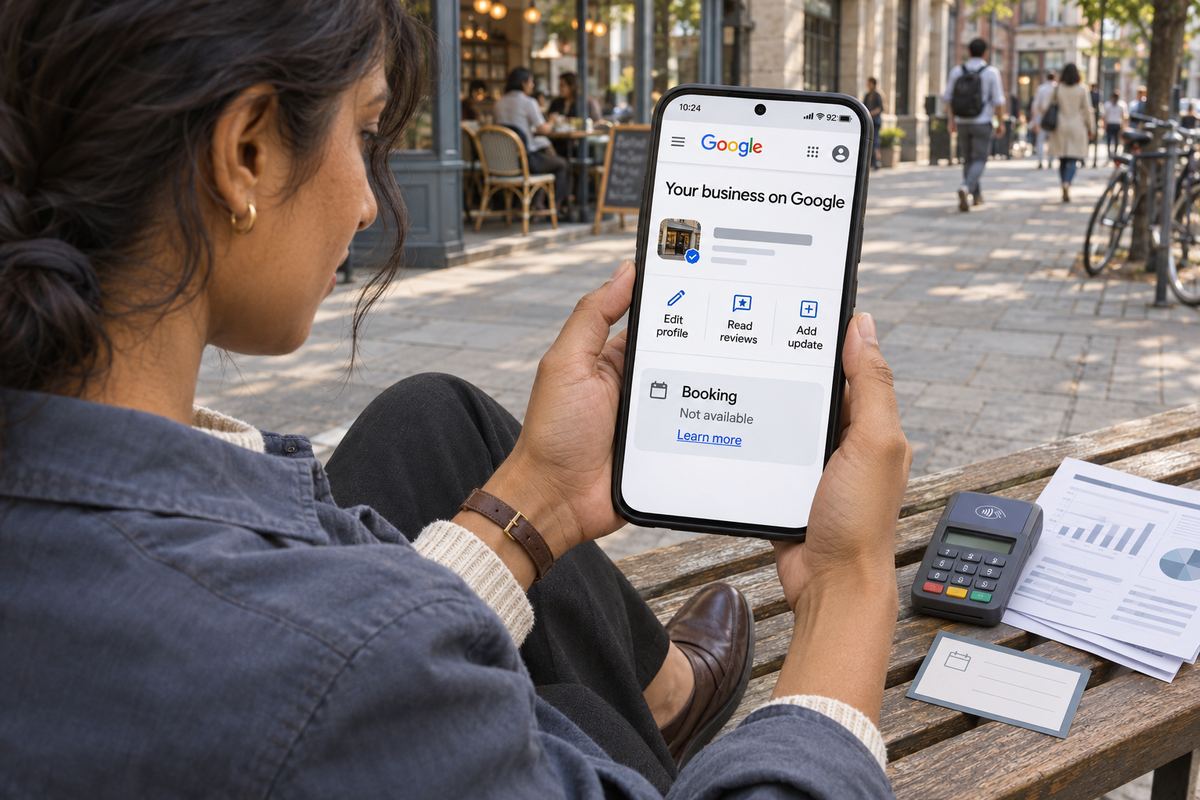
You open your studio's Google Business Profile to add a 'Book' button, and there's nowhere to put one. Or you pasted your booking link weeks ago and it still isn't showing, or it showed for a while and then vanished.
Two different things get called a booking button on Google: the 'Book online' flow that runs through Google's scheduling partners, and a link you add yourself that sends people to your booking page. They are set up in different places and fail for different reasons. The quick checks, in order: is the profile verified, does your category get a 'Booking' option at all, does your link follow Google's link rules, and is the edit still under review?
A free OneSol class page is a normal web link that people can book and pay on, so you can add it wherever Google lets you add a booking link.Make your booking page →First: the partner 'Book online' button and your own link are different things
The button most people picture comes from Reserve with Google. On a business's panel in Search or Maps, the customer clicks 'Book online', picks a date and a class time, clicks 'Book now' and then 'Book', all without leaving Google. Google's help says this only works in certain countries and regions, and only for businesses that work with a supported scheduling provider. It also says plainly that if a business doesn't have booking on its panel, it isn't set up to receive bookings through Google.
You don't switch that on by pasting a URL. Google's steps are: go to your Business Profile, select 'Bookings', select 'Get started', choose your provider, then select 'Done'. Google says providers show up on your profile within a week, that customers get services that work with their Google account, appointment reminders and Calendar, and that your provider might charge you for bookings made through Google.
The other kind is a link you add yourself. Google calls these local business links: you enter 'the URL that you want to link to the button', and people book on your own page. Google notes that performance data isn't available for these custom links. So the in-Google 'Book online' flow needs a provider that is one of Google's partners; any other booking page goes on as your own link.
Where to add your own booking or appointment link
These are the steps from Google's 'Manage your local business links' help page. To reach your profile on Search, sign in to the Google account that manages it, then search for 'my business' or your business name and city. Google's provider help page calls the same option 'Bookings'. If you don't see it at all, go to cause 1 below.
- Go to your Business Profile.
- In Google Search, select 'Booking'. In the Google Maps app, tap 'Business' at the bottom right, tap 'Edit profile', then choose the transaction type, 'Booking'.
- Select 'Add link'. If there's already a link, select 'Add another link'.
- Enter the full URL of the page where people book, starting with https://.
- Select 'Save'.
- If you have more than one link, select 'Set preferred link', choose one and select 'Save'. Google shows it at the top of your links, labelled 'Business preferred'.
Cause 1: There's no 'Booking' option (category, country or verification)
If the option isn't there, your profile can't take a booking link yet. Google's links policy says 'Not all businesses are eligible for business links', with the example that hair salons might allow customers to book appointments but are not eligible for online ordering links, and adds that some countries and regions aren't eligible for certain links. Its category help says that based on your category you might notice special features, for example health and beauty businesses can add a booking button. Google doesn't publish a full list of categories that get booking links, so there's no table to check a yoga studio or driving instructor against.
Verification is the other gate. Google's policy says 'Your business must be verified before you can add a link', and an unverified profile can only edit its name, category, address, hours, phone number and website.
- Check verification first. If Google asks you to verify the profile, finish that before you try anything else.
- Check that your primary category is the most specific one on Google's list that truly describes your business. Google's category help says to choose a specific category over a broad one, for example a nail salon rather than a general salon.
- Don't change category just to unlock a button. Google says categories should describe your business, not act as keywords, and that adding or editing a category might mean you're asked to verify your business again.
Cause 2: The link breaks Google's rules for business links
Google checks booking links against its business links policy, when you add them and afterwards. Its crawlers visit links daily at most, and Google says it may remove any non-compliant links. That is how a link that saved fine can disappear weeks later. The rules that catch teachers and small studios most often:
- It must go to a page for your business. Google says local business links must lead to a dedicated landing page for your business and, with more than one location, to that location's page, not a general page.
- It must let people finish the job. Google's example is that an 'order' link must let the customer complete an order. For a booking link, that means landing where someone can actually book.
- No social media, messaging or app store links, and no link shorteners. An Instagram profile or a WhatsApp chat link isn't allowed.
- The page must load for Google. It has to return a '200 OK' or similar success code, not an error such as 404 or 500. Google's checker, 'Google-BusinessLinkVerification', must not be blocked, rate limited, geoblocked or made to log in or solve a CAPTCHA.
- The link itself must be clean: no spaces, stray symbols, backslashes or a doubled 'http://'.
- One link per domain. If a link on that domain is already on your profile, whether you or a third-party provider added it, Google refuses or removes the new link you added, and it refuses exact duplicates too. So if your booking software is a Google partner and already shows on your profile, adding its link by hand won't stick.
Cause 3: The edit is still under review
Changes to a verified profile are reviewed before they go live. Google says edits usually take up to 10 minutes to review, but sometimes it can take up to 30 days, and that changes can take up to 3 days to appear in search results.
Google describes three outcomes for an edit: 'Accepted', meaning your updated info displays on your profile; 'Pending', meaning your edit is still under review; and 'Not approved', which Google says can happen when it can't confirm the change is accurate. Google adds that you might be able to appeal rejected business information edits.
- Sign in, search 'my business' and check your link is saved under 'Booking'. Then, in a private window, look your business up on Search and Maps to see what customers see.
- Don't keep re-adding the same link while you wait. Google refuses a link that duplicates one already entered.
- If it wasn't approved, go through the rules in cause 2, fix the page or the link, and save it again.
How to remove a booking button a provider added
Sometimes the problem is the opposite: a booking option on your profile from a provider you no longer use, or never signed up with, sending your students somewhere you don't control. Google says links for services like appointments or reservations can automatically appear on your profile through third-party partners, and that you cannot delete third-party booking or reservation providers directly from your Business Profile settings. Google's steps are:
- Contact the provider directly, using its opt-out link, support form or account portal.
- Wait for it to act. Google says third-party providers are required to process opt-out requests within 5 business days.
- If the link is still there after 5 business days, report a third-party violation using the link on Google's 'Manage your local business links' help page.
What to set up before your next class
A booking link on Google only helps if it works first time, on a phone, for a stranger. Before your next term or block of lessons:
- Confirm the profile is verified, signed in with the Google account that manages it.
- Make sure your booking page is public, opens without a login, and shows your class or lesson times with a way to book them.
- Add the full https link under 'Booking', and mark your main one 'Business preferred' if you have more than one.
- If you move to a new booking tool, swap the link straight away. Google checks links and can remove one that returns an error.
- A few days after saving, find your profile in a private window on your phone and make a test booking from start to finish.
If you need a booking page to link to
If you don't have a booking page yet, a free OneSol page is a normal web link where people book and pay into your own Stripe or PayPal: on an appointment page you set weekdays, hours and session length and a client picks a free time and pays when they book, and an event page has tickets with their own price and seat limit, with booking closing when it's full. OneSol is not one of Google's booking partners, so it can't create the partner 'Book online' button; it's a link you add yourself wherever Google's rules allow a booking link, and since each class date is its own event and Google allows one link per domain, your profile can point to only one OneSol page at a time. Appointments don't sync with Google Calendar, and times aren't converted to the client's timezone.