
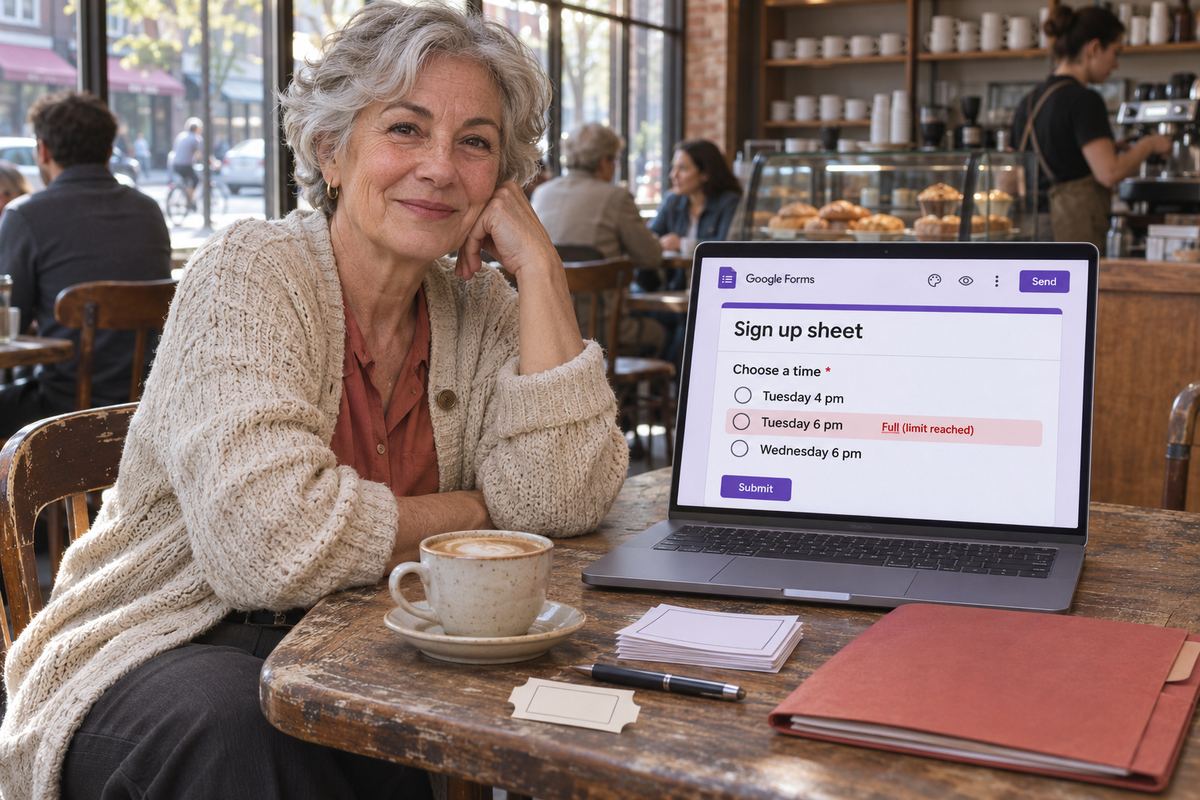
You made a Google Form as a sign-up sheet: one question with 'Tuesday 6 pm beginners', 'Saturday 10 am workshop' or 'Parent meeting 3:15' as the options, and each session meant for a set number of people. Then the twelfth person signs up for a ten-person class, because the option was still sitting there, looking as open as it did on the first day.
The quick answer: Google Forms has no per-option limit, and no setting that removes an option once it's full, whether the question is Multiple choice, Checkboxes or Dropdown. 'Select at most' looks like the answer but limits something else. Without leaving Google, you can remove full options by hand, give each session its own form with its own response limit, or add a short Apps Script that rebuilds the list after every sign-up. For people already in a full slot, see the fair way to sort it out further down.
On a free OneSol class page each session or ticket has its own number of spots, and it stops taking bookings by itself once those spots are gone.Make your sign-up page →Why a full slot never disappears
Google's list of question types is 'Short answer', 'Paragraph', 'Multiple choice', 'Checkboxes', 'Dropdown', 'File upload', 'Linear scale', 'Rating', 'Multiple choice grid', 'Checkbox grid', 'Date' and 'Time'. For the three you would use for sessions, responders choose from a set of options you provide, and none of them has a capacity per option. The form has no idea that 'Tuesday 6 pm' means a room with ten mats.
What Google did add, rolling out from January 2026 to Workspace accounts and personal Google accounts alike, is a response limit for the whole form: after a set number of responses, the form stops accepting more. That works for a single event with one capacity. On a sign-up sheet with several sessions it doesn't: set it to 18 for a 10-place and an 8-place session, and the form will take 18 people for Tuesday and nobody for Saturday.
'Select at most' limits one person, not the whole class
This is the setting most people find first, and it is the most common mix-up. On a Checkboxes question, click 'More', then 'Response validation', and Google offers three rules: 'Select at least', 'Select at most' and 'Select exactly'. Google's own descriptions say what they control. 'Select at most', for example, is to 'Set a maximum number of boxes that can be checked'. Those are the boxes in one person's response.
So 'Select at most 1' means each person can tick one session at most. It does nothing to stop the eleventh person ticking 'Tuesday 6 pm'. If you want one session per person, use Multiple choice, which only takes one answer anyway. 'Limit to one response per column' on a grid question works the same way: it stops one person picking two rows in a column, not two people picking the same one.
Fix 1: watch the Summary and remove a full option by hand
For a small group or sign-ups that trickle in, this is the simplest fix. Its weak spot is the gap between a session filling and you noticing, so if sign-ups arrive in a rush, use fix 2 or fix 3.
- Turn on alerts: open the form, click 'Responses', then 'More', then 'Get email notifications for new responses'.
- When one arrives, open 'Responses', then 'Summary'. Google's response summaries show a chart for each question, so you can see how many people picked each session.
- When a session reaches its number, click the question in the editor and remove that option, so the form stops offering it.
- Say so in the question's description, for example 'Sessions are removed from this list once they are full', so nobody emails to ask where Saturday went.
- When every session is full, turn off 'Accepting responses'.
- If each session needs its own questions, give it its own section: on a Multiple choice or Dropdown question, click 'More' at the bottom right, choose 'Go to section based on answer' and point each option to its section. Sections only route people; they don't count anything.
Fix 2: one form per session, each with its own response limit
The whole-form response limit becomes a per-session limit if every session has its own form. More forms to look after, but Google does the closing. The setting is off by default and is turned on in each form after it is published. Google's help also warns that if multiple people respond at the exact same time, the form accepts responses regardless of the response limit, so a popular session can still end up one or two over.
- Build and publish the form for the first session, then make a copy for each other session and change its title to that session, for example 'Saturday 10 am workshop'.
- In each published form, click 'Published' at the top right. Under 'Accepting responses', click 'Set close date or response limit'.
- Select 'After a number of responses' and enter the number of places for that session.
- Under 'Responders will see this message when the form is closed for responses', click 'Edit' and write something like 'This session is full. Other sessions:' followed by your link.
- Share one list of the session links instead of a single form link.
Fix 3: an Apps Script that rebuilds the list after each sign-up
To keep one form, Google Apps Script can do the counting. The script below runs after every submission, counts the answers to the session question and replaces the choices with only the sessions that still have room. Open the form, click 'More', then 'Apps Script', replace what is there with these lines and put in your own session names and numbers. The names must match the options exactly, character for character, and the session question must be the form's first Multiple choice question, without 'Go to section based on answer' on it.
Save, choose setUp and click 'Run' once. The first time, Google asks you to authorize the script: click 'Review permissions' and allow it. setUp creates a form-submit trigger, so updateSlots runs after every response; run setUp only once, or you get duplicate triggers. Google notes that installable triggers run under the account of the person who created them, so use the account that owns the form.
It runs after a response is saved, not before, so two people submitting at almost the same moment can still land in a full session. When every session is full it turns off 'Accepting responses'; if you free a place later, turn that back on. Forms add-ons in the Google Workspace Marketplace also do this job, if your school or employer allows them.
- function updateSlots() {
- var spots = { 'Tuesday 6 pm beginners': 10, 'Saturday 10 am workshop': 8 };
- var form = FormApp.getActiveForm();
- var question = form.getItems(FormApp.ItemType.MULTIPLE_CHOICE)[0];
- var taken = {};
- form.getResponses().forEach(function (r) { var a = r.getResponseForItem(question); if (a) { var s = a.getResponse(); taken[s] = (taken[s] || 0) + 1; } });
- var open = Object.keys(spots).filter(function (s) { return (taken[s] || 0) < spots[s]; });
- if (open.length > 0) { question.asMultipleChoiceItem().setChoiceValues(open); } else { form.setAcceptingResponses(false); }
- }
- function setUp() { ScriptApp.newTrigger('updateSlots').forForm(FormApp.getActiveForm()).onFormSubmit().create(); }
Already overbooked? Sort it out fairly
First, stop it getting worse: remove the full option, or turn off 'Accepting responses' for now. Then go by the order people signed up in. First come, first served is the rule people accept without arguing.
- Save a copy before you change anything: in 'Responses', click 'More', then 'Download responses (.csv)'. Google warns that deleting responses can't be undone.
- Open the CSV or your linked spreadsheet, filter to the full session and sort by the time each response came in. The earliest ones, up to your number of places, keep their place.
- Write to everyone after that cut-off the same day: the session filled before their sign-up arrived, here are the sessions with room, and they can go on a waiting list in case someone drops out.
- When someone picks a new session, ask them to fill in the form again with it, then delete their old response: click 'Responses', then 'Individual', find it with 'Previous' or 'Next', click 'Delete' and confirm with 'YES'. If you use the script, this also frees their old place in its count.
- If you didn't collect email addresses, the form gives you no reliable way to reach them. Match the names against your own contact list, and turn the setting on before the next sign-up.
Before your next sign-up sheet
Ten minutes of setup saves the awkward emails afterwards.
- Put the capacity in the option, for example 'Tuesday 6 pm beginners (10 places)'. If you use the script, use exactly the same text in it.
- Turn on 'Collect email addresses' in 'Settings', under 'Responses', choosing 'Verified' or 'Responder input', so you can reach anyone you need to move.
- 'Limit to 1 response', in 'Settings' under 'Responses', stops the same person signing up twice, but Google then requires everyone to sign in to a Google Account to fill in the form, which can shut out parents or clients who don't have one.
- Test before you share the link: if you use fix 2 or fix 3, set one session to 1 place, submit twice yourself and check what the second visit offers. Then clear the test answers with 'Responses', 'Summary', 'More', 'Delete all responses'.
- If each slot is for one person, like a parent meeting, Google Calendar has its own tool for that: click 'Create', then 'Appointment schedule', on a computer. Google says it works with a personal Google Account or a Workspace account, though some of its features need an eligible Google Workspace or Google One subscription.
If you'd rather the sign-up counted for you
On a free OneSol class page, each ticket type has its own number of spots, such as 'Beginners, 10 spots' and 'Advanced, 8 spots'; it stops selling by itself when those are gone, and the event closes when it's full. Each date or time is its own event page, since there is no repeating schedule yet, and booking asks only for name, email and number of guests, with one booking per email per event. For one-to-one lessons or consultations, OneSol appointments let you set weekdays, hours and slot length so a client picks a free time, though they don't sync with Google Calendar.