
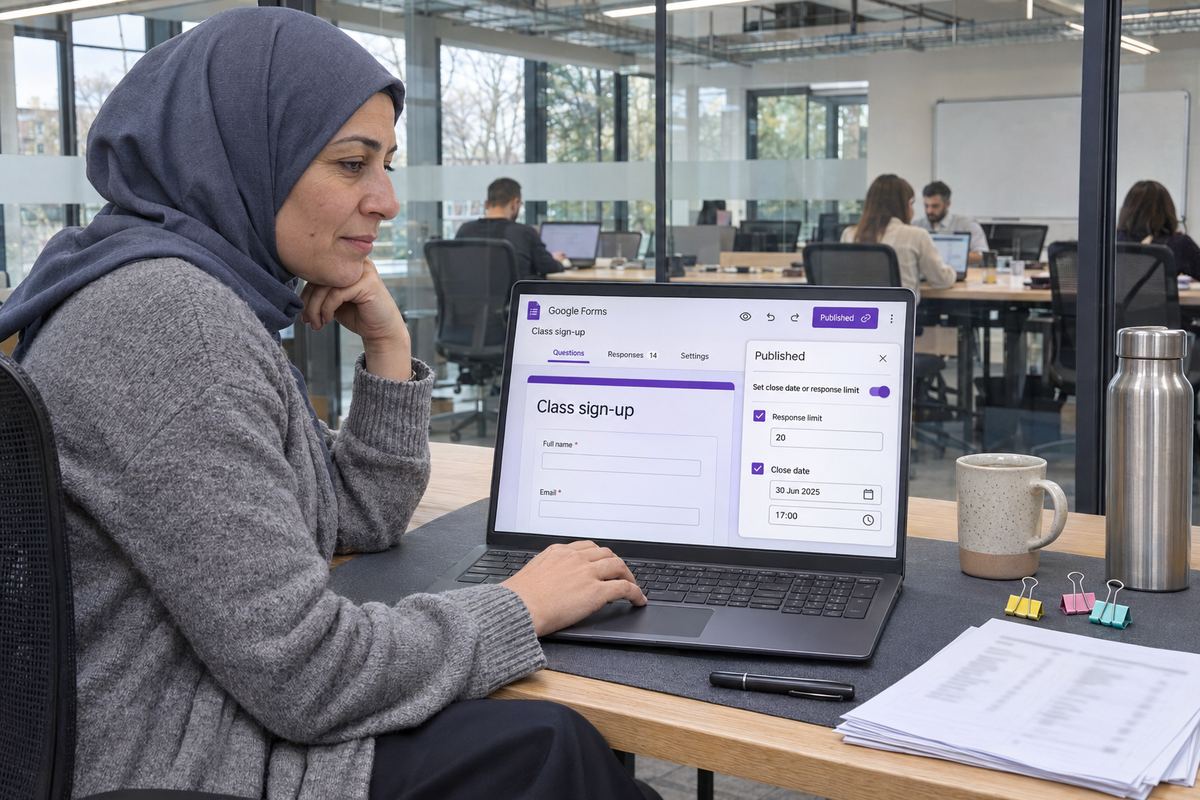
You made a Google Form for your workshop. There are 20 places. You dropped the link in a group chat, went off to teach, and came back to 34 sign-ups. Fourteen people now think they have a spot that doesn't exist.
Google Forms can stop this happening on its own now. In January 2026 Google started rolling out a setting that closes a form at a date and time you choose, or after a number of responses you choose. It is built in, it works on personal Google accounts as well as Google Workspace ones, and it is off until you turn it on. Guides that tell you to install an add-on or write a script just to cap a form were mostly written before it existed.
The quick answer: open the form, click 'Published' at the top right, and under 'Accepting responses' click 'Set close date or response limit'. The rest of this guide covers the exact steps, the gaps that can still let a 21st person in, and what to do with the sign-ups you already have past your limit.
Make a free OneSol class page instead: set the number of spots, and booking closes by itself when the class is full. Students pay when they book.Make your class page →Close the form after a set number of sign-ups
The response limit sits in the publishing options, not under 'Settings', which is why people miss it. The form has to be published first: Google's help says you can't accept responses in an unpublished form, and its announcement says the close setting is turned on after you publish.
- Open the form in Google Forms. At the top right, click 'Published'.
- Under 'Accepting responses', click 'Set close date or response limit'.
- Select 'After a number of responses' and enter the maximum, for example 20.
- To change what people see once it closes, under 'Responders will see this message when the form is closed for responses', click 'Edit', type your message and click 'Save'.
- Click 'Save'.
Close it at a set date and time
If you would rather stop sign-ups the evening before class, use a close date instead. It starts the same way.
- Click 'Published', then under 'Accepting responses' click 'Set close date or response limit'.
- Under 'On a date', click 'Choose date and time', pick the date and time, and click 'OK'.
- Edit the closed message if you want to, then click 'Save'.
- To change or remove either setting later, click 'Published', then 'Manage' under 'Accepting responses'. To take a close date off, click 'Remove Expiration', then 'OK'.
Why a 20-place limit can still let more than 20 people in
The setting counts responses. Your class counts people. Those are close, but not the same. There are three gaps worth knowing about before you rely on it, plus one setting that looks like a cap and isn't.
- Two people submitting at once. Google's help is direct about this: 'If multiple people respond at the exact same time, the form accepts responses regardless of the response limit.' A popular class shared with a big group can go one or two over, so decide in advance whether you will squeeze in an extra person or offer them the first waitlist place.
- One response, several people. If your form asks how many places someone wants and they book for three, that is still one response. Either ask everyone to fill in the form for themselves, so one response always means one place, or use the Apps Script further down.
- Your own test entries. Google says that if the form already has responses, the number you enter must be greater than the number received, which tells you the limit counts what is already in the form. With 2 test entries and 20 places, enter 22, and leave the test entries alone until the class has filled.
- The setting that isn't a cap: 'Limit to 1 response', found by clicking 'Settings' at the top of the form and the down arrow next to 'Responses'. It stops the same Google Account answering twice, and Google says respondents then have to sign in to their Google Account to fill out the form. Useful against double sign-ups, but it won't stop the 21st person.
Closing the form by hand
If the class is full right now, or you already have more responses than places, don't wait for the automatic setting. Because the limit has to be higher than the responses already received, a form holding 34 responses can't be given a limit of 20. Close it yourself:
- Click 'Published' at the top right.
- Switch off 'Accepting responses'.
- Edit the closed message so it says the class is full and what happens next, then click 'Save'.
- While sign-ups are open, keep an eye on the count: open the 'Responses' tab, click 'More' and choose 'Get email notifications for new responses', so you hear about each new sign-up as it comes in.
When one sign-up can be several people: a short Apps Script
If you want people to be able to book for a friend in one go, the built-in limit can't count places. A small Apps Script can. After each submission it adds up the answers to your 'how many places' question and closes the form when the total reaches your number, using the 'setAcceptingResponses' method from Google's Apps Script documentation. The Google Workspace Marketplace also has add-ons for limiting forms, but since the built-in setting arrived, most classes won't need one.
- In the form editor, click 'More', then 'Apps Script'.
- Clear the editor, paste this in, change the question title and the number 20 to match your form, and save the project: function closeWhenFull() { var form = FormApp.getActiveForm(); var places = 0; form.getResponses().forEach(function (response) { response.getItemResponses().forEach(function (answer) { if (answer.getItem().getTitle() == 'How many places?') places += Number(answer.getResponse()); }); }); if (places >= 20) form.setAcceptingResponses(false); }
- On the left, click 'Triggers', then 'Add Trigger' at the bottom right. Choose the 'closeWhenFull' function, set it to run when the form is submitted, click 'Save' and approve the permission request.
- Make the places question a dropdown with plain numbers such as 1, 2 and 3, so every answer can be added up.
- Know its limit: the script closes the form after the booking that fills it. If 18 places are taken and a group of three books, they still get in and you have 21.
You already have 34 sign-ups for 20 places: what to do now
Deal with it the same day. The people past your limit are planning around a place they don't have, and the sooner they hear, the easier the message is to take.
- Close the form by hand, as above, and change the closed message to say the class is full.
- Open the 'Responses' tab and click 'Link to Sheets', or click 'More' and then 'Download responses (.csv)'. Sort by the submission time so the earliest sign-ups are at the top.
- Mark the first 20 as confirmed. Number everyone after that, 21 to 34, as the waitlist in the order they signed up, and stick to that order.
- Email the 20: their place is confirmed, with the date, time, address or link, and anything they need to bring.
- Email the other 14: the class filled before their sign-up arrived, here is your waitlist number, and places will be offered in that order if anyone drops out. Put everyone in BCC so you don't share their addresses.
- When a place opens, offer it to the next number with a clear reply-by time, then move down the list if they don't answer.
- If you plan a second date for the overflow, tell the waitlist first. They have already told you they want to come.
What to set up before your next class
If your form didn't ask for an email address, you can't do any of the above, so start there. Ten minutes on these settings saves the awkward emails next time.
- Collect email addresses. Click 'Settings', then the down arrow next to 'Responses', and under 'Collect email addresses' choose 'Verified' (people sign in and their Google Account email is recorded) or 'Responder input' (they type an address in themselves, so typos get through).
- Next to 'Send responders a copy of their response', choose 'Always', so everyone keeps a record of what they signed up for.
- Set the response limit to your places plus any test entries, or a close date the evening before class, under 'Published' and 'Set close date or response limit'.
- Write the closed message before you share the link: say the class is full and how to get on the waitlist, such as a second form or your email address.
- Put the date, time, place and sign-up deadline, with your time zone, in the form description.
- Ask for one response per person, or set up the script above if groups book together.
- Turn on 'Get email notifications for new responses' so you see sign-ups as they arrive.
If you run classes with limited places
A form counts responses, so a class with a fixed number of places always needs a little supervision. A OneSol class page is built for this instead: each ticket can have its own seat limit and an off-sale date, booking closes by itself when the class is full, and it asks only for a name, an email and the number of guests, with paid spots paid at booking into your own Stripe or PayPal (free classes work too, on the free plan). For now each class date is its own event, so a weekly class means one page per date.