
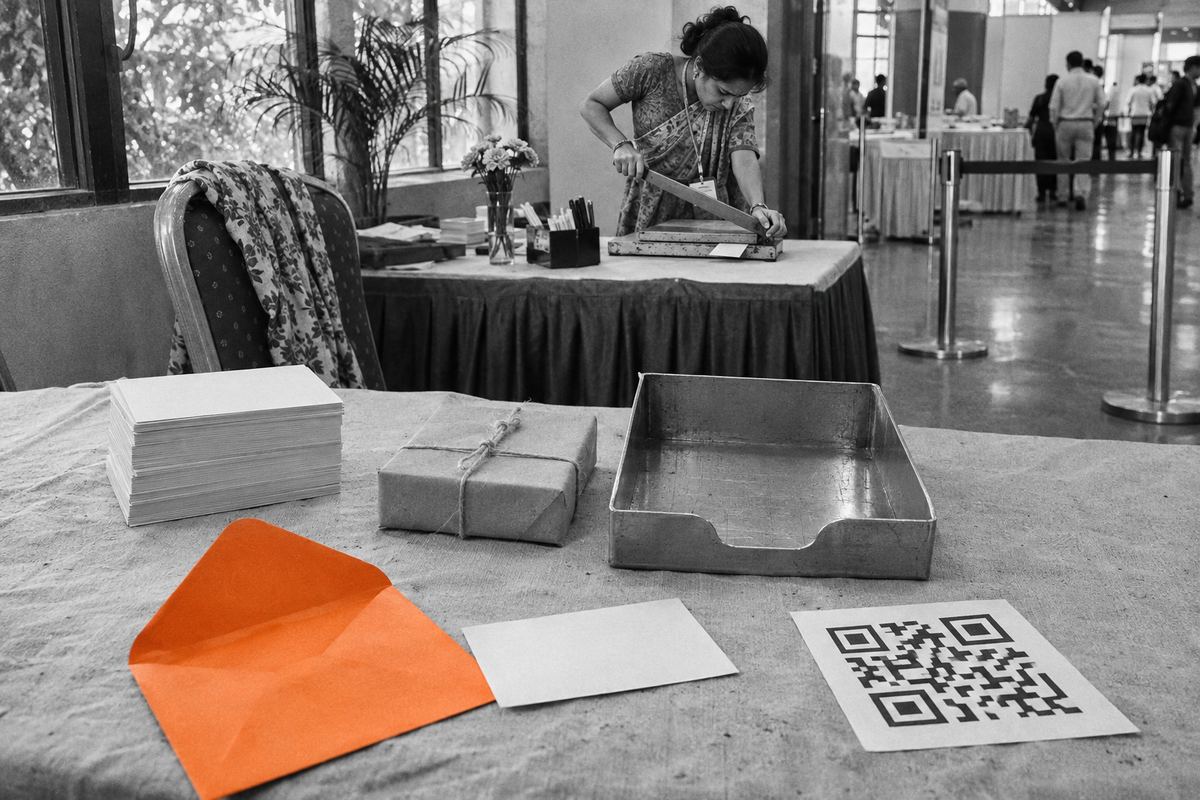
You go to share your HiHello card and something stops. Their camera ignores the QR code, the text never arrives, the card opens but you never land in their contacts, or the app won't sign you in.
HiHello's own help center covers almost all of these, and the fix is usually one skipped step. HiHello's FAQ says anyone can open and save a card from their web browser without installing anything, so when sharing fails, the card itself is rarely the problem. Find your symptom:
- The QR code won't scan: the phone's camera, someone with the HiHello app but no account, or the offline code.
- Nothing arrived: the text was never sent, the email is in their junk folder, or you hit a sending limit.
- You are not in their phone: the 'Save Contact' steps stopped halfway.
- Sync or sign-in trouble: the iPhone contacts profile, a scheduled integration, or a changed login.
The QR code won't scan, or doesn't open your card
HiHello says it does not limit how many times your QR code can be scanned, so the code has not run out. If the person scanning has the HiHello app, your card opens there; if not, it opens in their web browser. The one who gets stuck has the app installed but no account. HiHello's advice for them is to create an account, remove the app, or view your card in an incognito window.
Also check you are not showing the offline code. Tapping the QR code on the 'Share' screen switches to offline sharing mode, which HiHello says carries only your name, company, title, phone and email plus a link to your full card. Tap the code again to switch back.
If their camera does nothing at all, the fix is on their phone. These steps come from Apple's and Google's own help:
- iPhone: open the Camera app, or open Control Center and tap 'Scan Code', hold the phone so the code appears, then tap the link. If 'Scan Code' is missing, touch and hold the Control Center background, tap 'Add a Control' and choose 'Scan Code'.
- Android (Google's Pixel help; other brands differ): in the Camera app, go to 'Settings', then 'More settings', and make sure 'Camera scan suggestions' is on. Keep the entire code on screen and tap the link that appears. Or swipe down for Quick Settings and tap 'Scan QR code', using the pencil icon to add it if it is missing.
- Either phone: Google's tips are a steady hand, good light without shadows or glare, a clean lens, and moving closer while keeping the whole square on screen.
Your card won't send, or they never got it
Texts and emails fail differently. A text, HiHello says, opens in your default messaging app for you to edit and send, from your own number. Nothing goes out until you press send there, so check that conversation. HiHello's 'Send via HiHello' option, which it says needs a Professional subscription, sends from a randomized HiHello number instead.
An email sent from within the app comes from HiHello, not from your address, and shows a preview of your card with a 'View in HiHello' button. Because the sender is unfamiliar, ask the person to check junk or spam and search for HiHello.
If several sends fail in a row, check the limits. HiHello's Acceptable Use Policy (last updated December 20, 2023) allows, on every plan, no more than 10 text messages using HiHello's phone number and no more than 20 emails within a 15-minute period, and caps HiHello Free at 75 emails a month.
- Email from a computer: in the web app, open the 'Cards' page, select the card, click 'Email' in the side panel, enter their name and email address, and click 'Send'.
- After a text, go straight back to HiHello; its help says that is when the person is added to your HiHello Contacts page. Someone who only scans your QR code is not added, because HiHello says it can't capture their information.
- Or send the link yourself: click 'Copy Link' beside the QR code in the web app, or use the copy-URL option under 'Share' in the mobile app, and paste it into any chat or email.
They opened your card, but you are not in their contacts
Tapping 'Save Contact' only starts the save; the last steps happen in the phone's own Contacts app. HiHello warns that if they are not completed, the person can view the new contact, but its details will not be saved on their phone. Walk them through it while you are still together:
- iPhone: tap 'Save Contact' at the bottom of the card, then 'Create New Contact', edit the details if needed, and tap 'Done'.
- Android: tap 'Save Contact', then 'Download' to get the VCF file, and open it. In the phone's contacts, tap 'Import', choose 'Phone', and tap 'Import' again.
- If the card then asks for their name, email or phone number, HiHello says they can tap 'Skip' in the top right corner.
- No way to save at all? HiHello's custom contact exchange settings let a card owner turn off the option for new contacts to save their details, and they apply to every card in the account. If it is your card, check there.
The HiHello app isn't syncing
HiHello's FAQ says cards and contacts sync across its iPhone, Android and web apps. If two devices show different cards, check you are signed in to the same account on both. Syncing contacts to other places is a separate step:
- iPhone Contacts: in the HiHello app, go to 'Settings', then 'Integrations', and under 'Contacts on this device' tap 'Set up'. Then open the iPhone's Settings app, tap 'General', then 'VPN & Device Management', and install the HiHello Contacts Profile.
- Asked for a CardDAV password: HiHello says the profile was not installed correctly, since a correct install has the password embedded. Remove it in 'VPN & Device Management' and set it up again.
- Deleted contacts coming back: HiHello says to delete contacts in HiHello itself; they are removed from your phone at Apple's next sync.
- Google Contacts: HiHello says this integration is available on its paid subscriptions, new contacts appear in about an hour and then sync every 6 hours, and Google contacts only come into HiHello with the 'Import Google contacts to HiHello' toggle on.
- CRMs and other integrations: HiHello says contacts whose card was deleted cannot sync with its integrations.
You can't sign in, or your cards are missing
HiHello signs in with an email and password or single sign-on, and its FAQ lists Google, Microsoft and Apple. Most problems come from using a different method or address from the one the account was made with.
- Facebook: HiHello's help says it will no longer support Facebook single sign-on, and after a Facebook login it shows a screen to add Google, Microsoft or an email and password. Add one.
- Forgotten password: use the 'Forgot Password' link on the login page. HiHello can only send reset links to emails registered to HiHello accounts, so if nothing arrives, try your other addresses.
- Signed up with Google, Apple or Microsoft and never set a password: HiHello says 'Reset Password' in Settings, or the 'Forgot Password' link, lets you create one.
- Changed your login email: if HiHello asks you to log in again, its help says to use your original login email.
- Cards missing: HiHello notes that a card you transferred no longer appears in your account, and that someone such as an employer may have created an account for you. Sign in with the address and method you first used.
- Work accounts: HiHello says Business and Enterprise accounts may be limited to one login method set by the administrator. For anything else, its support address is support@hihello.com.
Make it work next time
Most of these failures happen with someone waiting in front of you. A few minutes of setup avoids that.
- Test the card: on its three-dot menu in the app, choose 'Test' to see it as a new contact will. HiHello says opening the preview link in an incognito or private window lets you try the full experience, like saving your own contact.
- Keep a code one tap away: 'Add to Wallet' on the same menu adds the card to Apple Wallet or Google Wallet, and on iPhone the 'Quick Connect' toggle puts it on your lock screen.
- Log in before you lose signal. HiHello says you can then still show your QR code and share from the widget or your wallet offline, but you can't log in without a connection.
- Save the code with 'Download QR', and keep the link from 'Copy Link' for when a scan won't work.
- Tell people to finish the save: 'Create New Contact' and 'Done' on an iPhone, 'Import' on Android.
If you'd rather share a plain link
A free OneSol digital business card is a web page at a link like onesol.io/businesscard/yourname, with a QR code that opens in any phone's camera and browser and a 'Save contact' button that downloads a standard contact file, so neither you nor the person you share it with needs an app. It is only a link, so there is no Apple Wallet or Google Wallet pass, and no way for the other person to send their details back through it.