
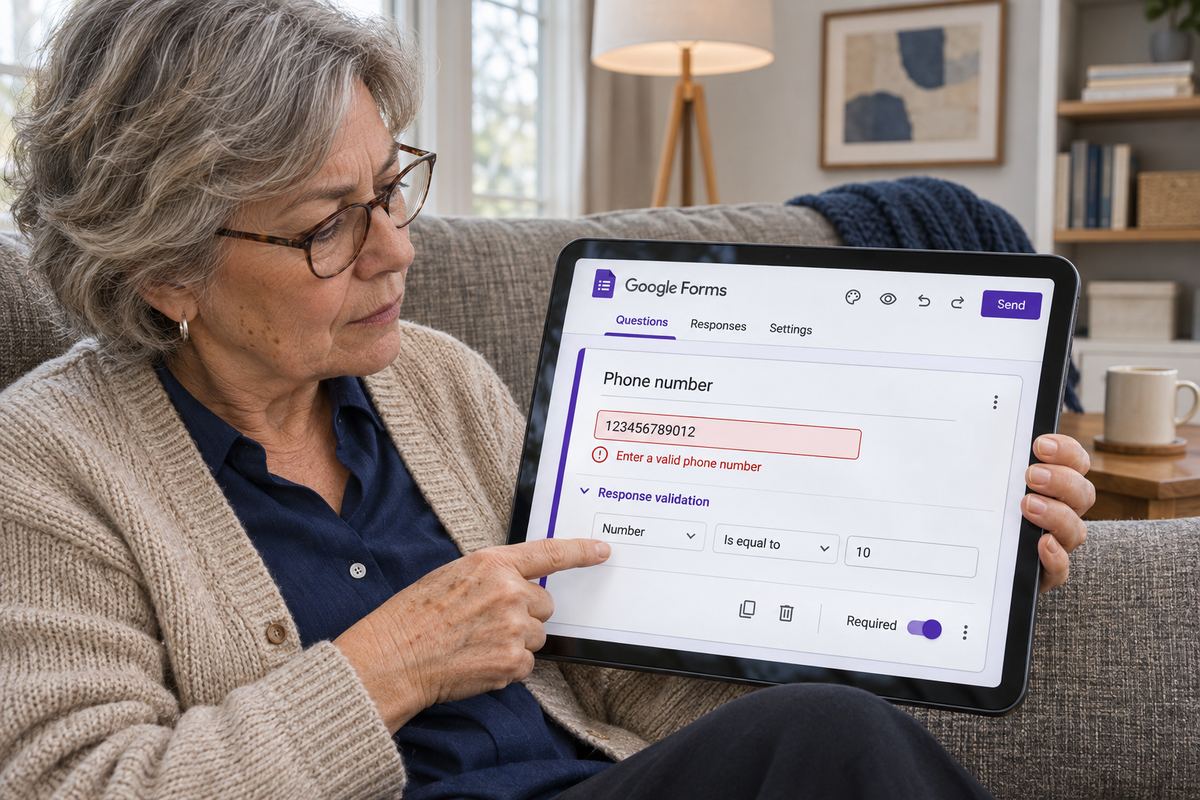
You set up a rule on a Google Form question, and it doesn't do what you expected. Someone typed a phone number with two extra digits and it went straight through. An email field accepted 'name@gmial.com'. A respondent writes to say the form keeps rejecting a correct answer and they can't press 'Next'. Or you open the question's menu and there is no 'Response validation' option at all.
Google Forms validation is reliable, but it is literal. It checks exactly the rule you picked, on the question types that support it, and nothing more. Almost every complaint comes down to one of four things: the question type, the rule type, a regular expression that is looser or stricter than intended, or a question that isn't marked as required.
Missing option? Where validation lives, and which questions have it
Google's help for form rules puts it in the question's 'More' menu. Open the form, click the question, click 'More' at the bottom right of the question, and choose 'Response validation'. Pick a rule type, then fill in the optional 'Custom error text' field, which is what respondents see when their answer breaks the rule. Google notes that the rule options available depend on the question type.
If 'Response validation' isn't in that menu, the question is a type that doesn't support it. The most common case is a phone or ID question built as 'Paragraph', where people look for a 'Number' rule that only exists on 'Short answer'. Change the type in the dropdown to the right of the question title, then open 'More' again. And if you only want one of a few set answers, such as a department or a size, a 'Dropdown' or 'Multiple choice' question does that without any rule.
Google's Workspace help says validation applies to short answer, paragraph and checkbox questions. Here is what each one offers, in Google's wording:
- 'Short answer': 'Number' (for example a number greater than or equal to a value, or a number between 21 and 42), 'Text' (contains, doesn't contain, or email format), 'Length' ('Maximum character count' or 'Minimum character count') and 'Regular expression'.
- 'Paragraph': only 'Length' and 'Regular expression'. There is no 'Number' or 'Text' rule here.
- 'Checkboxes': 'Select at least', 'Select at most' and 'Select exactly', each with a number.
- 'Multiple choice grid' and 'Checkbox grid': not 'Response validation' but their own settings, 'Require a response in each row' and, under 'More', 'Limit to one response per column'.
- 'Multiple choice', 'Dropdown', 'Linear scale', 'Rating', 'Date', 'Time' and 'File upload': no response validation. The fixed choices, scale or format already limit what people can enter.
Cause 1: Phone numbers rejected, or wrong ones accepted
A phone number looks like a number but isn't one. It can start with a zero or a plus sign and is often typed with spaces or dashes, so a 'Number' rule is the wrong tool. Google's own example for a phone number uses 'Regular expression' with the pattern [0-9]{10}, meaning ten characters from 0 to 9.
That example on its own is where many forms go wrong. The pattern describes ten digits in a row, and '123456789012' also has ten digits in a row inside it. Google's regex table lists ^ as the start of the answer and $ as the end, so anchor the pattern and set the dropdown to 'Matches':
- Exactly ten digits, nothing else: ^[0-9]{10}$
- Ten digits with optional dashes, such as 555-123-4567: ^[0-9]{3}-?[0-9]{3}-?[0-9]{4}$
- International numbers with an optional plus and spaces, 7 to 15 characters: ^\+?[0-9 ]{7,15}$ (the backslash makes the plus sign literal, as Google's table describes for special characters)
- Write the format in the question's description, for example 'Digits only, no spaces', and repeat it in 'Custom error text' so people know how to fix their answer.
Cause 2: The regular expression is looser or stricter than you think
The 'Regular expression' rule has four options: 'Contains', 'Doesn't contain', 'Matches' and 'Doesn't match'. Google's help doesn't spell out how 'Contains' differs from 'Matches', so don't rely on the dropdown to do the anchoring for you. Put ^ and $ around any pattern that has to describe the whole answer, and it will behave the same whichever you pick. Use 'Contains' only when you really mean 'somewhere in the answer', for example a reference code that must appear in a longer sentence.
A few more things catch people out:
- Case matters. Google's own table shows d[ou]g matching 'dog' and 'dug' but not 'dOg'. To accept both cases, list them, for example [A-Za-z].
- Special characters need a backslash. A dot means 'any character', so example.com also matches 'exampleXcom'. Write example\.com. Google gives \$ as its example of searching for a dollar sign literally.
- Spaces count. An answer with a trailing space fails ^[0-9]{10}$. If people paste numbers, allow it with \s* before the $.
- Patterns copied from elsewhere may not work. Google's Sheets help says Google products use RE2 for regular expressions, and RE2 doesn't support every feature found in other regex engines. Keep to the symbols in Google's table: . * + ? ^ $ {A,B} [ ] [^ ] \s and the backslash.
- Test both ways. Before sharing, enter an answer that should pass and one that should fail. A rule that rejects everything is usually a missing character; a rule that accepts everything is usually missing anchors or set to 'Contains'.
Cause 3: Email validation lets bad addresses through
On a 'Short answer' question, the 'Text' rule has an email option. Google describes it as making sure the response is in email format, like text@example.com. That is all it checks. 'name@gmial.com' is a correctly shaped address, so it passes, and so does any invented address in the right shape. No form rule can tell whether a mailbox actually exists.
If what you really need is the respondent's own email, Google Forms can collect email addresses through the 'Responses' section under 'Settings', rather than relying on a typed question. If you keep the typed question, put a short line in its description asking people to double-check the spelling of the part after the @.
Cause 4: Number ranges and character limits behave oddly
The 'Number' rule checks the value, such as greater than or equal to 18, or between 21 and 42. People don't always type plain numbers, though. If someone writes '1,000', '$50' or 'about 30', your rule may refuse an answer that means the right thing. Say the expected format in the description, for example 'Whole number, no commas or symbols', and repeat it in 'Custom error text'.
The 'Length' rule counts characters, not words. 'Maximum character count' of 500 on an essay question means 500 letters, spaces and punctuation, which is roughly 80 to 100 words. For a word limit, use 'Regular expression' set to 'Matches' with ^(\s*[^\s]+){1,250}\s*$, which allows between one and 250 words. Change both numbers to suit, for example {50,300} for 50 to 300 words.
Cause 5: Rules that people can skip, and checkbox counts
Validation checks what is typed. Whether something has to be typed at all is a separate switch. Google's quiz walkthrough sets the validation rule and then turns 'Required' on, so people can't simply leave the question empty. If your rule seems to be ignored on blank answers, check that 'Required' is on for that question.
On 'Checkboxes', 'Select at least', 'Select at most' and 'Select exactly' count ticked boxes. Make sure the number fits the options you offer: 'Select exactly' 3 on a question with two options can never be satisfied. On grids, respondents see 'This question requires one response per row.' when a row is empty, and 'Please don't select more than one response per column.' when 'Limit to one response per column' is on.
When a respondent can't continue, and how to prevent it
Google's help for respondents explains that the 'Next' button stays blocked while a required question is empty or a validation error isn't resolved, and that owners can set rules that block submission. Its advice to respondents is to contact the form owner if a rule seems wrong. So when someone writes in, ask exactly what the red message says. If it is your own 'Custom error text', you know which rule to look at. If you left that field empty, consider filling it in on every validated question, in plain words: 'Enter 10 digits, no spaces or dashes' tells people far more than a generic error.
A short routine before you share any form saves most of these emails.
- Pick the question type first: 'Short answer' for anything you want to check with 'Number', 'Text' or a pattern.
- Anchor every regular expression with ^ and $, and escape dots, plus signs and dollar signs with a backslash.
- Write 'Custom error text' for every rule, saying what a correct answer looks like.
- Turn 'Required' on for any question whose rule must always apply.
- Open the form as a respondent and try a correct answer, a wrong one and a blank one on each validated question.
If you'd rather not fight the form builder
If your form is mainly a sign-up, booking or intake form, OneSol forms are another option: they open without a sign-in, take file uploads, and every response lands in your dashboard and your inbox.