
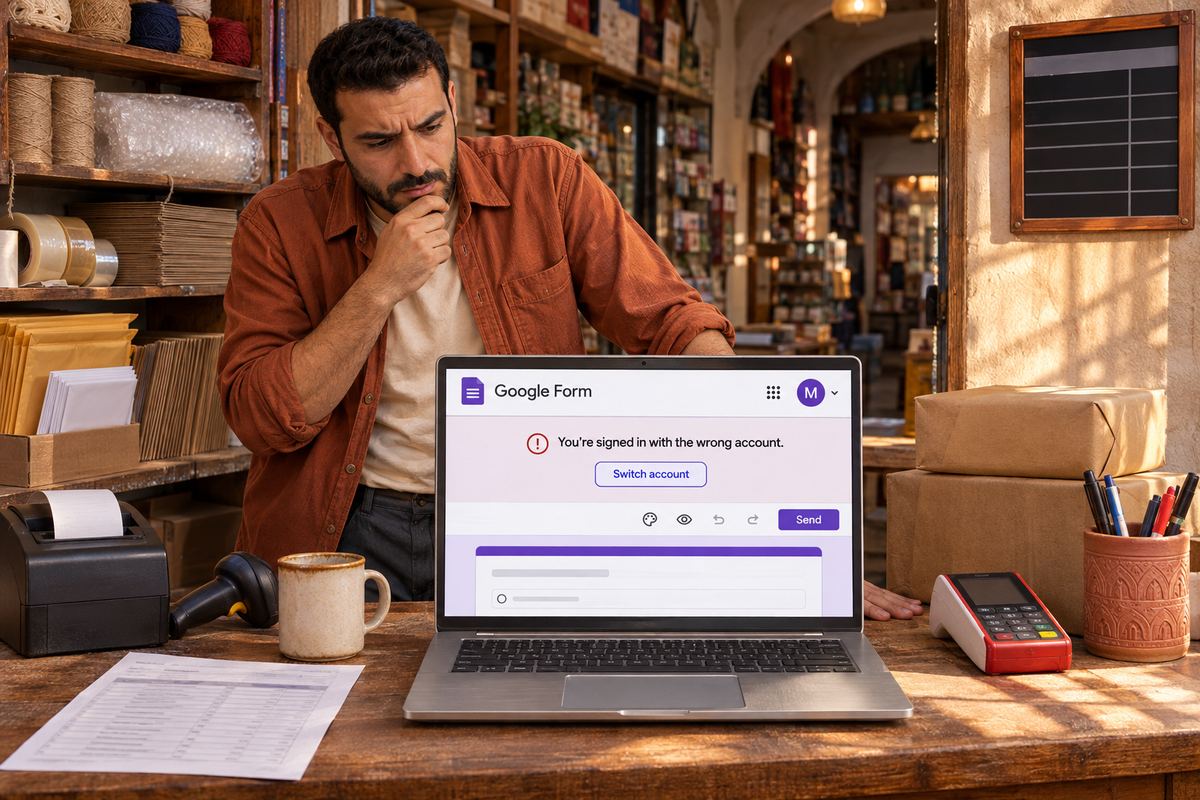
Someone fills in your Google Form and the response sheet shows their personal Gmail instead of their work address. Or they tell you they clicked 'Switch account', picked the right one, and the form came straight back with the old account. Or the form says it can only be filled in by people in an organisation, while they insist they have an account there.
All of these come from the same place. A Google Form that needs sign-in uses whichever Google account the browser hands it, and a browser with two or three accounts signed in does not always hand over the one you expect. Once you know which account is being used and which form setting is asking for it, the fix is quick.
The quick answer: which account the form uses
Google lets you be signed in to several accounts at once in the same browser. One of them is the default. Google's account help says that in many cases your default account is the one you signed in with first, and that on phones and tablets the default can vary by operating system and app. When a Google page can't tell which account you mean, it falls back to the default.
So the form isn't picking the wrong account at random. It's usually picking the default, and the default is the account you signed in with first, which is often personal Gmail on a home laptop and a work account on an office one. The surest way to control the account is to give the form a browser window where only one account exists.
- The form records an address you didn't expect: see cause 2, the 'Collect email addresses' setting.
- 'Switch account' doesn't stick, or the form keeps reopening as the wrong account: see cause 1.
- The form says it is only for people in an organisation, or shows 'You need access' on one account when the person has another: see cause 3.
- The form asks to sign in at all, when you'd rather it didn't: see cause 4. That one has its own full guide on this blog.
Cause 1: The browser keeps falling back to the default account
This is the one behind most 'switch account not working' complaints. The person switches, the form reloads, and somewhere along the way the browser falls back to the default account again. Rather than fighting the account switcher, take the other accounts out of the picture.
- Use a private window. In Chrome, open the menu and choose 'New Incognito window', or press Ctrl + Shift + N on Windows or Command + Shift + N on a Mac. Google's Chrome help says Incognito doesn't automatically sign you in to your Google Account, so paste the form link, sign in with only the account you want, and submit. Close every Incognito window afterwards to end the session.
- Use a separate browser profile. Chrome profiles keep bookmarks, history, passwords and settings apart, and Google suggests them for keeping work and personal accounts separate. Click the profile icon at the top right, choose 'Add Chrome profile', and sign in to the second account there. Open work forms from that profile and they will only ever see that account.
- Change which account is the default. Go to a Google page, click your profile picture at the top right and choose 'Sign out of all accounts'. Then sign in to the account you use for forms first, and add the others after it. Before you sign out, check you have a backup way to sign back in to each account, as Google's help recommends.
- Switch the normal way when it does work. Click your profile picture at the top right of a Google page and pick the account from the menu, then open the form link again.
- On a phone, open the link in your browser's private mode, or sign in there with the right account. The default account in apps can differ from the one in the browser.
Cause 2: The form is set to record the signed-in email
If the response sheet has the wrong address in it, look at how the form collects addresses. The owner sets this under 'Settings', then the 'Responses' section, then 'Collect email addresses'. Google's help names the options 'Verified' and 'Responder input', plus 'Do not collect'. Some of Google's own pages call the second one 'Responder entry', so look for whichever label your menu shows.
With 'Verified', Google's help says respondents must confirm that their Google Account email address gets collected with their response. In other words, the address in the sheet is the account they were signed in to, not anything they typed. That is why a work survey ends up with a personal Gmail address in it: the person was signed in to Gmail first, and Forms recorded exactly that.
With 'Responder input', the person types an address into the form. Nothing ties it to the account they are signed in to, and Google's AppSheet help notes there is no way to verify an address entered this way. A wrong address in that column is a typo, an old address, or a deliberate choice, not an account problem.
- Responder on a 'Verified' form: before you submit, check the address the form says it will record. If it is the wrong one, use cause 1's private window or profile and fill it in again from the start.
- Responder who already submitted: you can't change the account on a sent response. Tell the form owner which response is yours.
- Owner fixing one bad response: open the form, click 'Responses', then 'Individual', find the response with 'Previous' or 'Next', click 'Delete' and confirm. Google warns deleted responses can't be restored, so copy anything you need first, and check a linked spreadsheet separately, because it is its own file in Drive.
- Owner who needs a specific address, such as a work one: say so at the top of the form, and consider 'Responder input' with a short-answer label like 'Work email', so people aren't forced to switch accounts at all.
- Asking for a copy of the response: 'Send responders a copy of their response' only works when emails are collected, and the copy goes to the collected address, so a wrong account also means the receipt goes to the wrong inbox.
Cause 3: The form is restricted to an organisation
Forms made with a work or school Google account behave differently. Google's help says that, unless the creator changes the settings, forms created through work or school accounts are only accessible to people within the organisation. A responder signed in to personal Gmail gets turned away, even if they also have a work account in the same browser. That is the message people describe as the form 'can only be completed by users in' the organisation, or a 'You need access' screen on one account when they have the right one elsewhere.
Responder fix: Google's steps are to go to myaccount.google.com, select your profile image at the top right, choose your work or school account in the menu and sign in, adding it with 'Add another account' if it's new on this device. Then open the form link again. If the browser keeps sliding back to personal Gmail, use a private window and sign in only with the work account.
If you have no account in that organisation, nothing on your side will fix it. Google suggests asking the owner directly, with a message along the lines of 'I can't open it because it's restricted to people within your organization.'
Owner fix: on older forms, open 'Settings' and turn off 'Restrict to users in' followed by your domain name. On upgraded forms, click 'Share' or 'Published', then 'Manage', and set responder access to 'Anyone with link'. Your organisation's admin may limit what you can choose.
- Partner companies stopped being able to respond: Google's help says that on September 8, 2025 it removed trusted-domain access to restricted forms, so people from trusted domains can no longer open or submit them.
- Google's suggested fixes are to make the form public, to share it with a Google Group that contains those people, to set up a target audience if your Workspace edition has that option, or to share the form with each responder individually.
Cause 4: The form forces sign-in in the first place
The account can only be wrong if the form asks for one. Several settings make a Google Form require sign-in, and each of them turns a two-account browser into a guessing game. We cover them in detail in our guide to a Google Form asking to sign in, and the 'You need permission' screen has its own guide too, so here is the short version for owners.
- 'Limit to 1 response', under 'Settings' then 'Responses'. Google's help says users must sign in to their Google Account to fill out a form with this on, since Forms needs an account to know who has already answered.
- A file upload question. Google's help says responders need to sign in to a Google Account to answer it.
- 'Collect email addresses' set to 'Verified', as in cause 2.
- A form restricted to your organisation, as in cause 3.
Prevent it next time
Most wrong-account problems go away when the form doesn't need an account. If you don't truly need a verified Google identity, set 'Collect email addresses' to 'Responder input' or 'Do not collect', leave 'Limit to 1 response' off, and drop file uploads. If you do need sign-in, tell people which account to use in the form's description and in the message that carries the link.
- Test every new form in a private window where you are not signed in. What you see there is what a stranger sees.
- Test it again while signed in to a second account, to catch organisation restrictions.
- If you collect addresses, add a short line like 'We'll reply to the email shown above' so people check it before they press 'Submit'.
- If you use 'Responder input', mark the email question as required and give it a clear label, so you aren't left guessing which address to reply to.
A form with no account to get wrong
OneSol forms open without a sign-in, so there is no Google account for the browser to pick wrongly, and every response lands in your OneSol dashboard and your inbox.